
Portal Configuration
Configure your webhook integrations in the Tradecloud portal to enable real-time event delivery to your systems.
Accessing Webhook Settings
Section titled “Accessing Webhook Settings”- Log in to the Tradecloud portal
- Navigate to My Company (under your avatar menu)
- Select the Settings tab
- Locate the Webhook Integration section
Order Events Configuration
Section titled “Order Events Configuration”Enable order webhook integration to receive notifications when orders are created, updated, or changed.
Event Selection
Section titled “Event Selection”Configure which order events trigger webhook notifications:
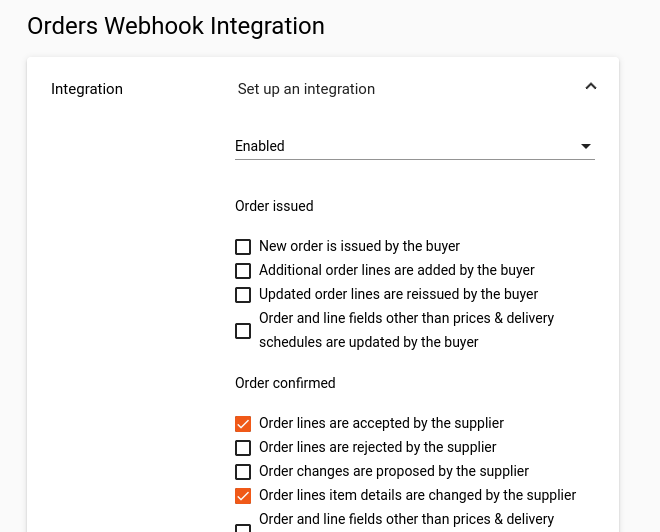
Customization: Select events based on your integration capabilities and business process requirements. See complete event list for all available options.
Delivery Schedule Mode
Section titled “Delivery Schedule Mode”Choose how order deliveries are structured in webhook payloads:

| Mode | Payload Field | Use Case |
|---|---|---|
| Multiple Deliveries | orderEvent |
Complex delivery schedules with multiple dates per line |
| Single Delivery | singleDeliveryOrderEvent |
Simple orders with one delivery per order line |
Learn More: Delivery Schedule vs Single Delivery documentation.
Order Lines
Section titled “Order Lines”Choose which order lines a POST JSON webhook payload carries:
| Option | Payload lines |
|---|---|
| Only changed order lines | The lines affected by the event |
| All order lines | Every line of the order |
Only changed order lines is the default. With All order lines,
lines holds every line of the order, including cancelled and completed
lines, in buyer position order. Choose it when your system needs the complete
order in every message.
This option is independent of the Delivery Schedule Mode: all four combinations are valid. It applies to the POST method with the JSON format only; a GET webhook and a tXML payload are not affected.
With All order lines, the payload is the order as it is when the webhook is sent, not as the event left it:
- It can show changes made by events you did not select in Event Selection. Selecting events decides when you receive a webhook, not what the order in it contains.
- The order line
reasonis absent. The order-levelreasonof the event is still present. eventNamestill tells which event triggered the webhook. Use it, notlastUpdatedAtorversion, to decide whether an order is new or changed:OrderIssuedByBuyerandOrderResentBySupplierare new orders, every other event is a change.- Compare the per-line
lastUpdatedAtto find the lines that changed.
See Order version for what version means and
how to recognise a retried event.
Document Events Configuration
Section titled “Document Events Configuration”Enable document webhook integration to receive notifications when order documents are attached or updated.
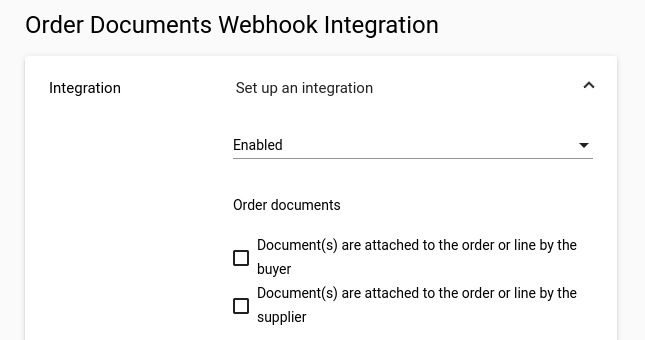
Event Sources:
- Buyer Documents - Documents added by order buyers
- Supplier Documents - Documents added by order suppliers
- Both - All document events regardless of source
See document events reference for complete event details.
Shipment Events Configuration
Section titled “Shipment Events Configuration”Enable shipment webhook integration to receive notifications about despatch advice and delivery updates.
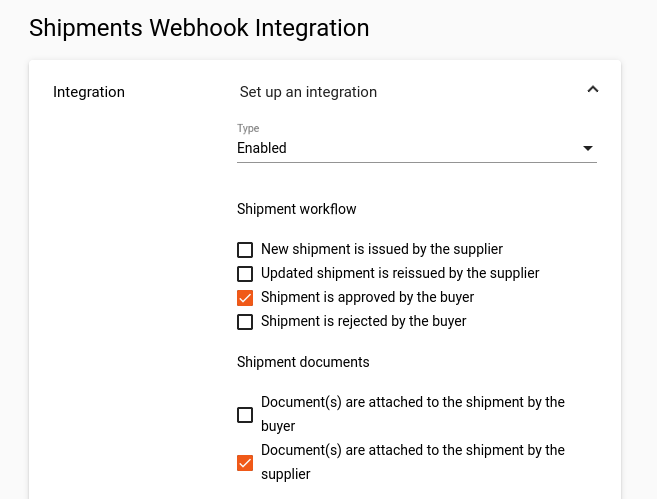
Customize event selection based on your logistics processes. See shipment events reference for all available events.
Endpoint Configuration
Section titled “Endpoint Configuration”Configure your webhook endpoint URL and HTTP method:
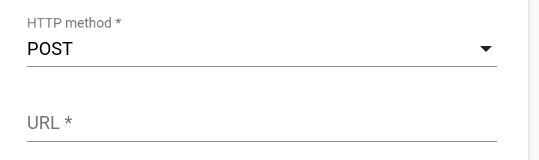
Requirements
Section titled “Requirements”- Method: POST (only supported HTTP method)
- URL: Must start with
https://(HTTP not supported) - Accessibility: Endpoint must be publicly accessible from internet
Example: https://api.yourcompany.com/webhooks/tradecloud
Authentication Setup
Section titled “Authentication Setup”Configure secure authentication for webhook requests. Choose from three supported methods:
Basic Authentication
Section titled “Basic Authentication”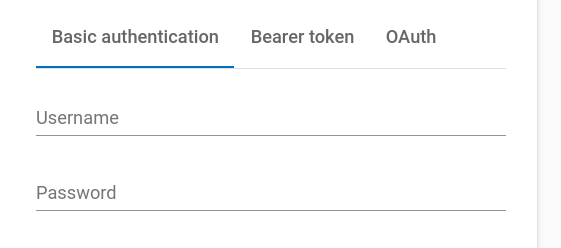
Configuration:
- Standard: RFC 7617 compliant
- Username: Webhook service username
- Password: Webhook service password
- Header:
Authorization: Basic <base64(username:password)>
Bearer Token
Section titled “Bearer Token”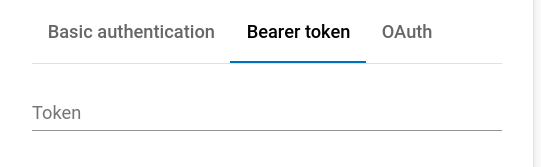
Configuration:
- Standard: RFC 6750 compliant
- Token: Static authentication token
- Header:
Authorization: Bearer <token>
OAuth 2.0 (Microsoft Identity Platform)
Section titled “OAuth 2.0 (Microsoft Identity Platform)”Order webhook OAuth authentication uses the Microsoft Identity Platform via MSAL4J. It is not a general-purpose OAuth 2.0 client — custom OAuth extensions required by other security token services are not supported. Use Basic Authentication or a Bearer Token if your webhook endpoint is protected by a non-Microsoft identity provider.
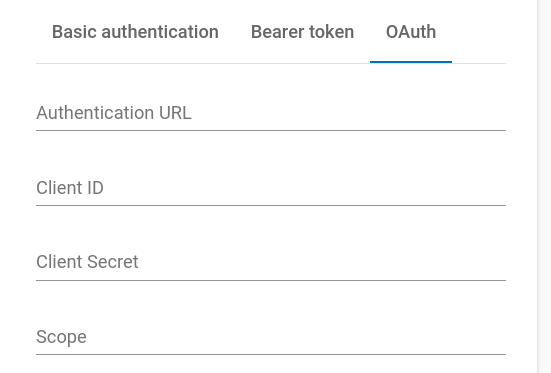
Configuration Fields:
- Authentication URL: Microsoft token endpoint (authority URL)
Example:https://login.microsoftonline.com/<tenant-id>/oauth2/v2.0/token - Client ID: Application (client) ID from your Microsoft Entra app registration
- Client Secret: Client secret from your Microsoft Entra app registration
- Scope: Granted scope for webhook access
Example:
https://your-webhook-endpoint/.default
Supported authority types (determined from the authentication URL path):
| Authority | URL pattern | Example |
|---|---|---|
| Microsoft Entra ID (Azure AD) | Default | https://login.microsoftonline.com/{tenant} |
| ADFS | Path contains adfs |
https://adfs.contoso.com/adfs |
| Azure AD B2C | Path contains tfp |
https://{tenant}.b2clogin.com/{tenant}.onmicrosoft.com/{policy} |
Grant type: OAuth 2.0 Client Credentials (RFC 6749 Section 4.4).
Testing Configuration
Section titled “Testing Configuration”Development Testing
Section titled “Development Testing”Use webhook.site for initial configuration testing:
- Generate test URL at webhook.site
- Configure test webhook with the generated URL
- Use placeholder credentials (webhook.site doesn’t validate auth)
- Trigger test events to validate payload delivery
- Inspect payloads in webhook.site interface
Integration Testing
Section titled “Integration Testing”- Configure test endpoint in Tradecloud acceptance environment portal
- Trigger test events through sample transactions
- Validate event processing and response handling
- Test error scenarios with various HTTP status codes
Production Validation
Section titled “Production Validation”- Configure production endpoint in Tradecloud production environment portal
- Perform test transactions to trigger events
- Validate event processing in your system
- Monitor webhook logs for delivery confirmation